Tips and Tricks
Subdivision and RAM
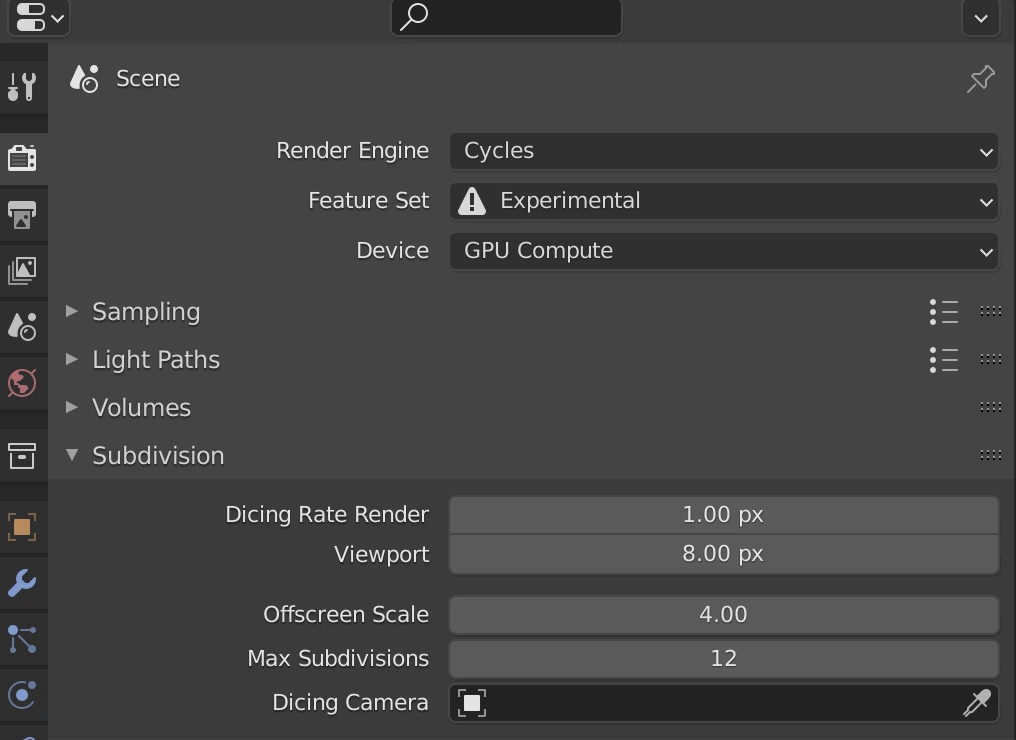
By default, Blender sets your Dicing rate to 1.00 px for rendering, and Max Subdivisions to 12.
These settings mean that:
- When you render, your dicing rate will determine how much your mesh subdivides in that rate (1px rate means that your mesh will subdivide up-to the max in a 1x1 pixel area)
- The maximum amount that your mesh can subdivide up-to
If you wish to have a high amount of detail, in your mesh, then leave the maximum subdivision amount high and increase the dicing rate for render amount. A higher dicing rate means that your mesh will only subdivide within that region. for example, a dicing rate of 8px, will mean that for every 8x8 pixel region, your mesh will subdivide, up-to the maximum SubDiv amount (if it needs to).
Lets take a standard resolution of 1920x1080, and we leave the dicing rate at 1, then you can expect Blender to sbddivide up-to 12 times, 1,920 times across the width of your image, and 1,080 times up the height of your image.
If we take a dicing rate of 10px, then this will drop to 192 and 108 times, saving a 10 times the amount of RAM needed.
Recommendation
We recommend setting these options to a dicing rate of 4px for render, and subdivision to 6 as a baseline to check your ram usage.
Info
4K textures shouldn't need to subdivide more than 8 times, to get high amount of detail from them. There is also no need to have a high amount of subdivisions on a mesh, if you're rendering lower than 2160x1440p. This falls under the 'Law of Diminishing returns' where there will be a sweet spot, of RAM needed, and quality output to resolution. fullHD images, will not show all the fine details of high subdivisions to low dicing rates:
| Dicing rate (px) | Max Subdivisions | RAM Usage | |
|---|---|---|---|
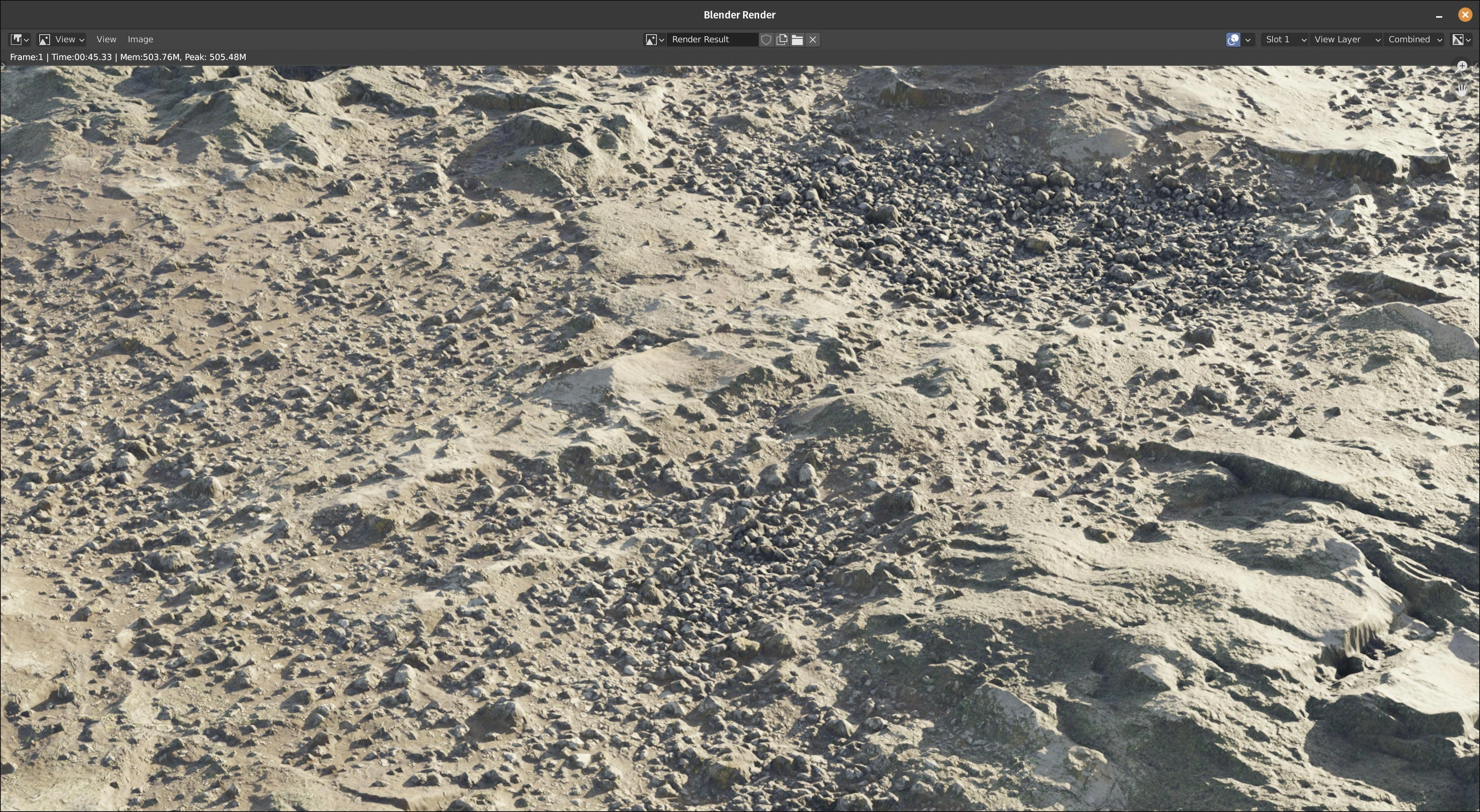 |
4 | 8 | 504Mb |
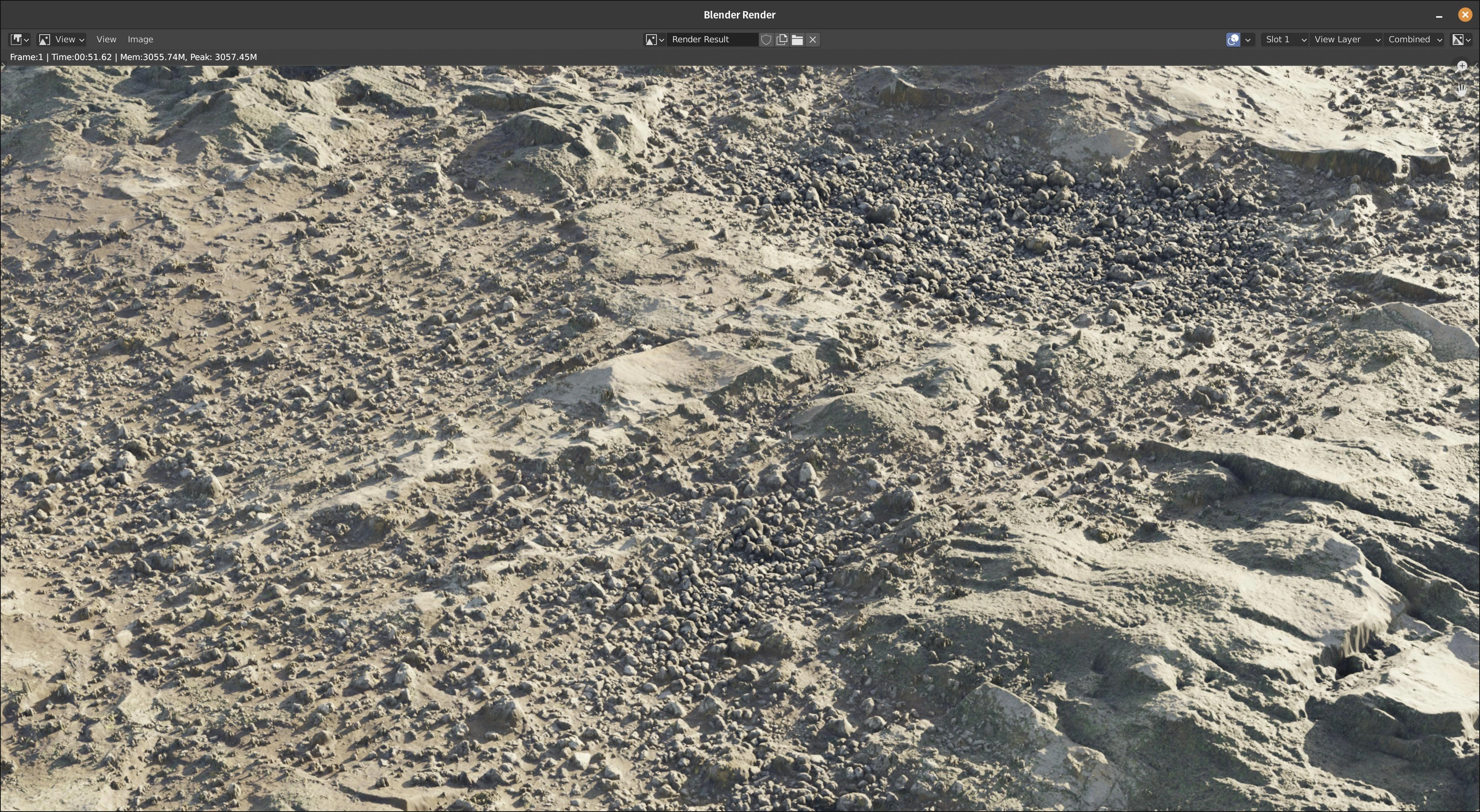 |
1 | 12 | 3Gb |
Image size and RAM
Another trick to reduce RAM usage, is to limit the resolution of images you use, that aren't going to be visible.
for example, if you are covering a scene in grass assets, or have some background Terrain meshes, then you will not see the 4K resolution anyway.
As shown below, 4K images, can use upto 10+ times more RAM:
| Resolution | RAM Usage | |
|---|---|---|
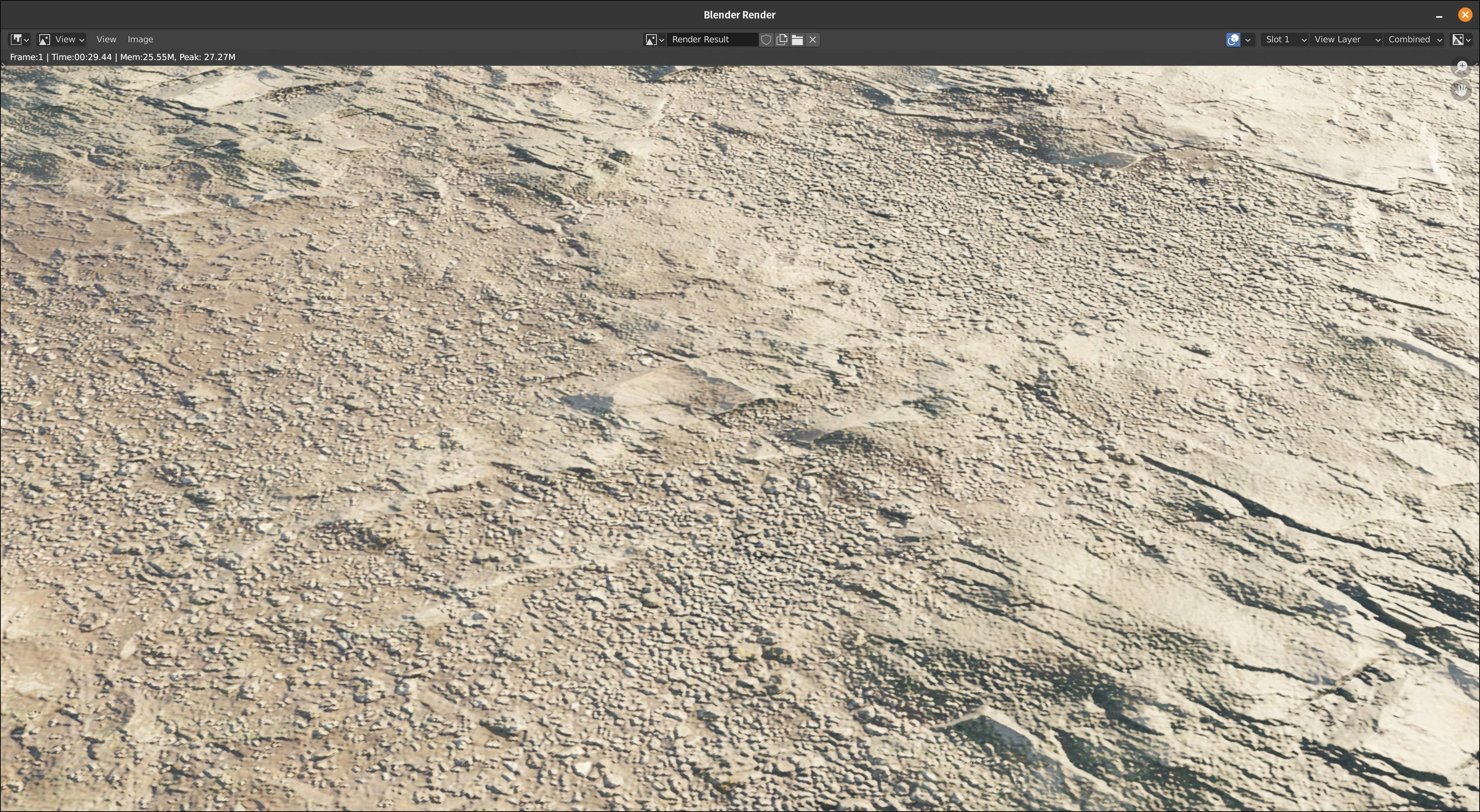 |
1K | 25Mb |
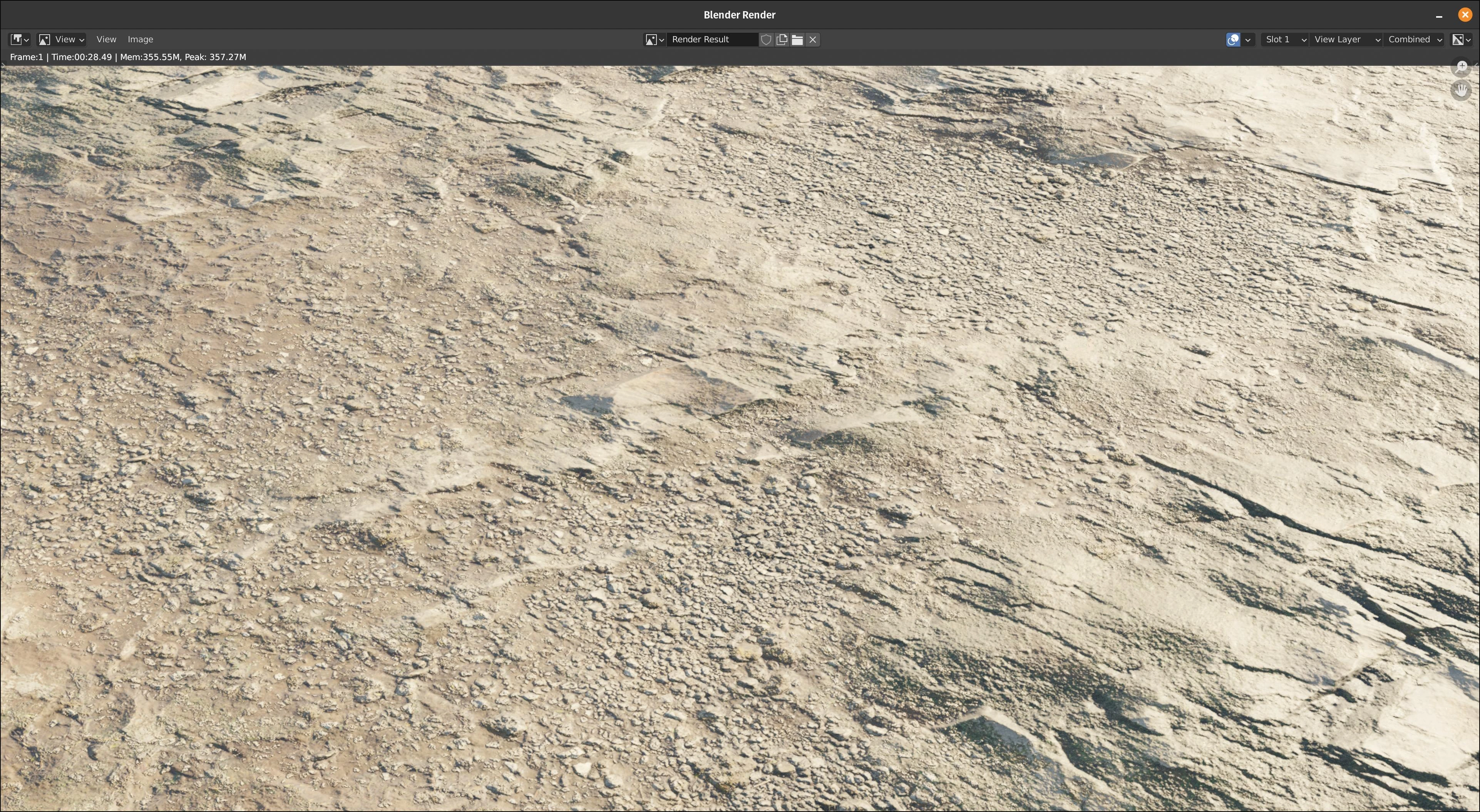 |
4K | 350Mb |