Bake Textures
Bake Textures
Tip
If you have open the Blender Console while baking you can see extra information than what is displayed in the viewport.
Base Settings
Bake Type: Bake
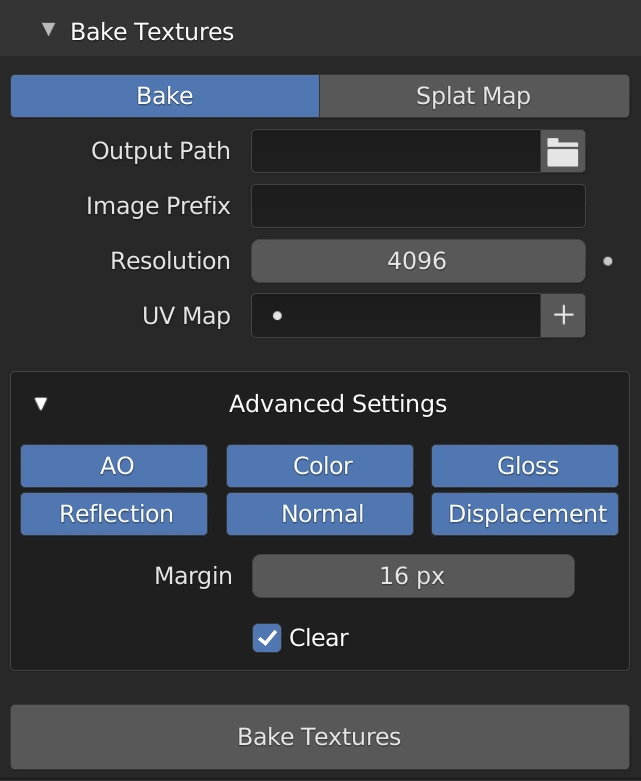
Output Path
Select a folder where your baked textures should be outputted
Image Prefix
Prefix to use when naming images and folders. If blank the material name will be used.
Resolution
The resolution of the exported images. Will be this value for both the height and the width
UV Map
UV Map used when baking
Add UV Map
Add and make active a new UV Map for baking
Advanced Settings
Export Texture Types
Toggle on/off the texture types you'd like to export
Margin
This is the padding Blender uses when baking.
Clear
Clear the current image first.
Bake Type: Splat Map
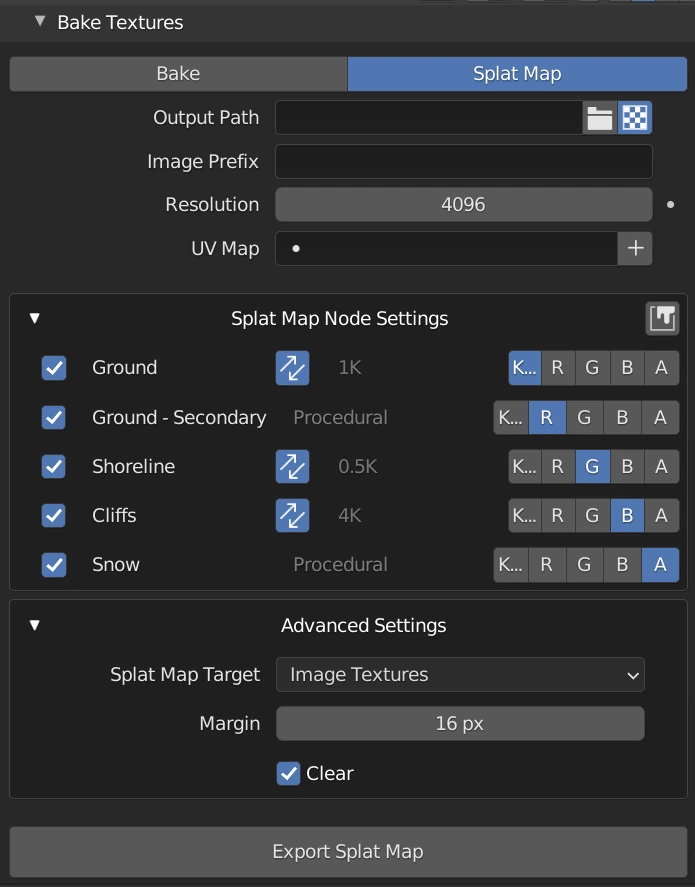
Output a Splat Map to use for quick and easy mixing in Blender or other 3D programs. Usually for games. Stores the mix maps in the RGBA values of the export PNG.
Output Path
Select a folder where your splat map should be outputted
Export Textures
Export the textures used at their current resolution (not the Splat Map's resolution) to the output path along with the Splat Map. If not needed toggle this off to potentially speed up export time since it won't need to copy any other files
Image Prefix
Prefix to use when naming the Splat Map and texture folders. If blank the material name will be used.
Resolution
The resolution of the Splat Map. Will be this value for both the height and the width
UV Map
UV Map used when baking
Add UV Map
Add and make active a new UV Map for baking
Splat Map Node Settings
Preview
Preview the splat map in the viewport before baking. Making changes to the settings will update in the viewport.
The button to the right of the "Splat Map Node Settings" title/label with the Paint Bucket Icon:

Splat Map Items
Each item, or node, or material, depending on how you think of it, that is active/enabled will show up in this area with settings to customize for the Splat Map.

Use Item
Use this item when baking out the Splat Map. Checkbox to the far left
Sync Resolution
Use the same resolution that is active to this texture.

If proxy texture resolution is being used it will be using the render resolution.
If off the greyed out resolution next to this button will become a menu of the available resolutions for this texture to use to export
Not visible if the item is using a Procedural type of material (Snow is always procedural)
Advanced Settings
Splat Map Target
How to export the Splat Map
Image Textures
- Export the Splat Map as a PNG image
Vertex Colors
- Store Splat Map RGBA values to the nearest vertex of the object. No image exported
Margin
This is the padding Blender uses when baking.
Clear
Clear the current image first.
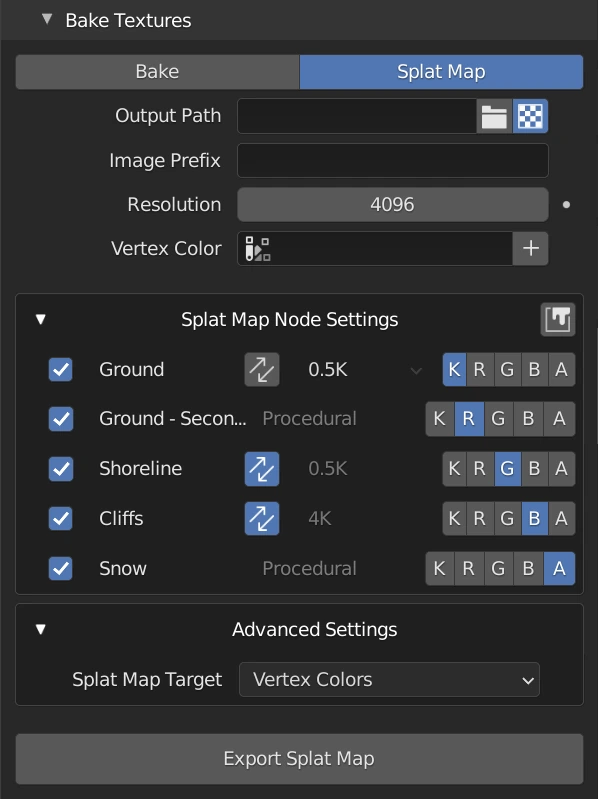
Bake Type: Splat Map - Alt
Note
When the Splat Map Target is set to Vertex Colors a couple of things change throughout the bake settings
Vertex Color
Instead of a UV Map setting there's now the option to add/assign a Vertex Color Layer to use when exporting the Splat Map
Add Vertex Color Layer
Add button will add and make active a new vertex color layer